

The main thing Deeta does. Send someone your details, they get a proper contact rather than a screenshot or a typed-out message.
Sharing your card
-
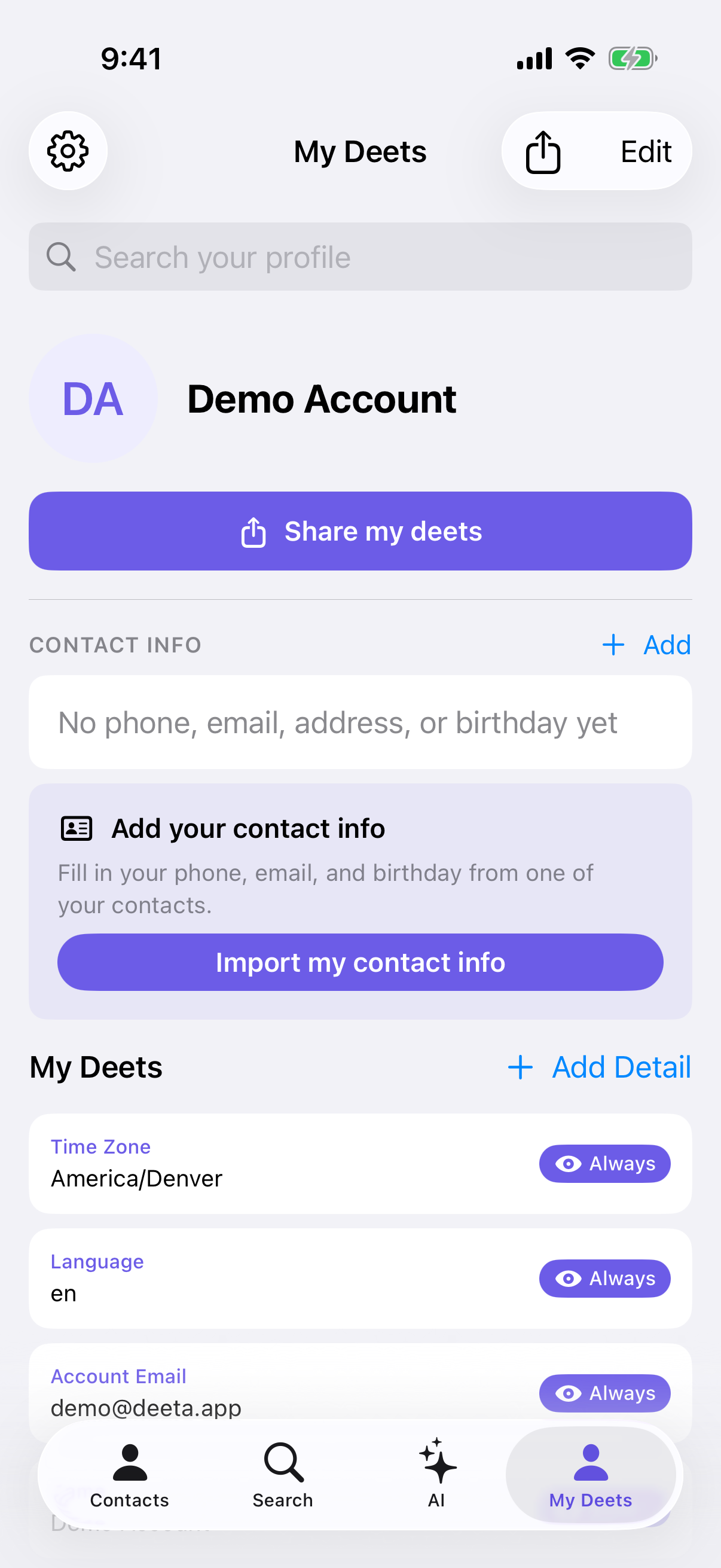
Open the My Deets tab and tap Share my deets.
-
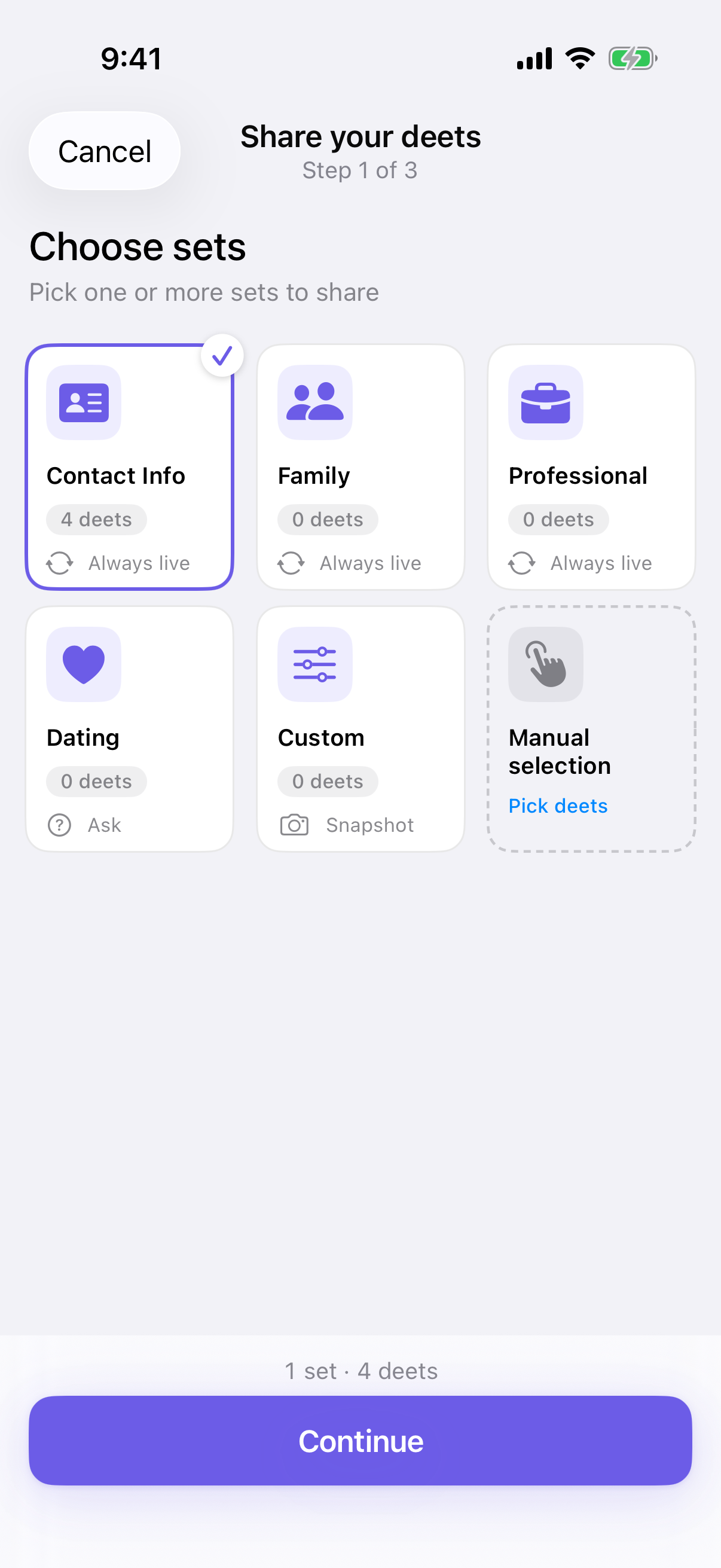
Choose what to send. Pick the set that suits — work details for a colleague, personal ones for a friend. You can pick more than one; see Sharing more than one set at once.
-
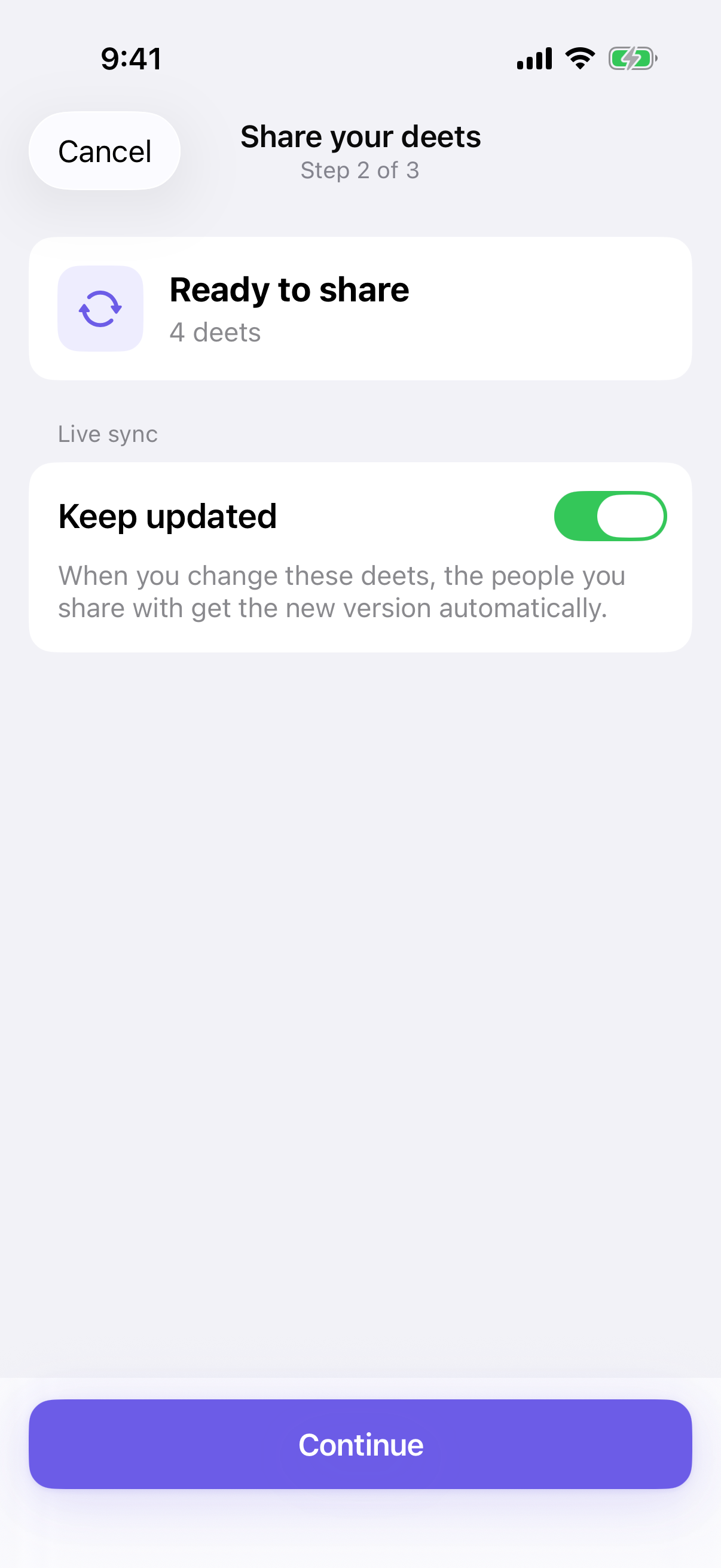
Check whether it stays up to date. A live card keeps updating on their phone when you change a detail later. A snapshot is a fixed copy of what you sent that day. The Ready to share step shows which one you're sending, based on the set's setting: an Always set goes live automatically, an Ask me set shows a Keep updated switch (on unless you turn it off), and a Never set goes as a snapshot. Live cards work on every plan — see How many live cards you can have, below, and Sending a card that stays up to date.
-
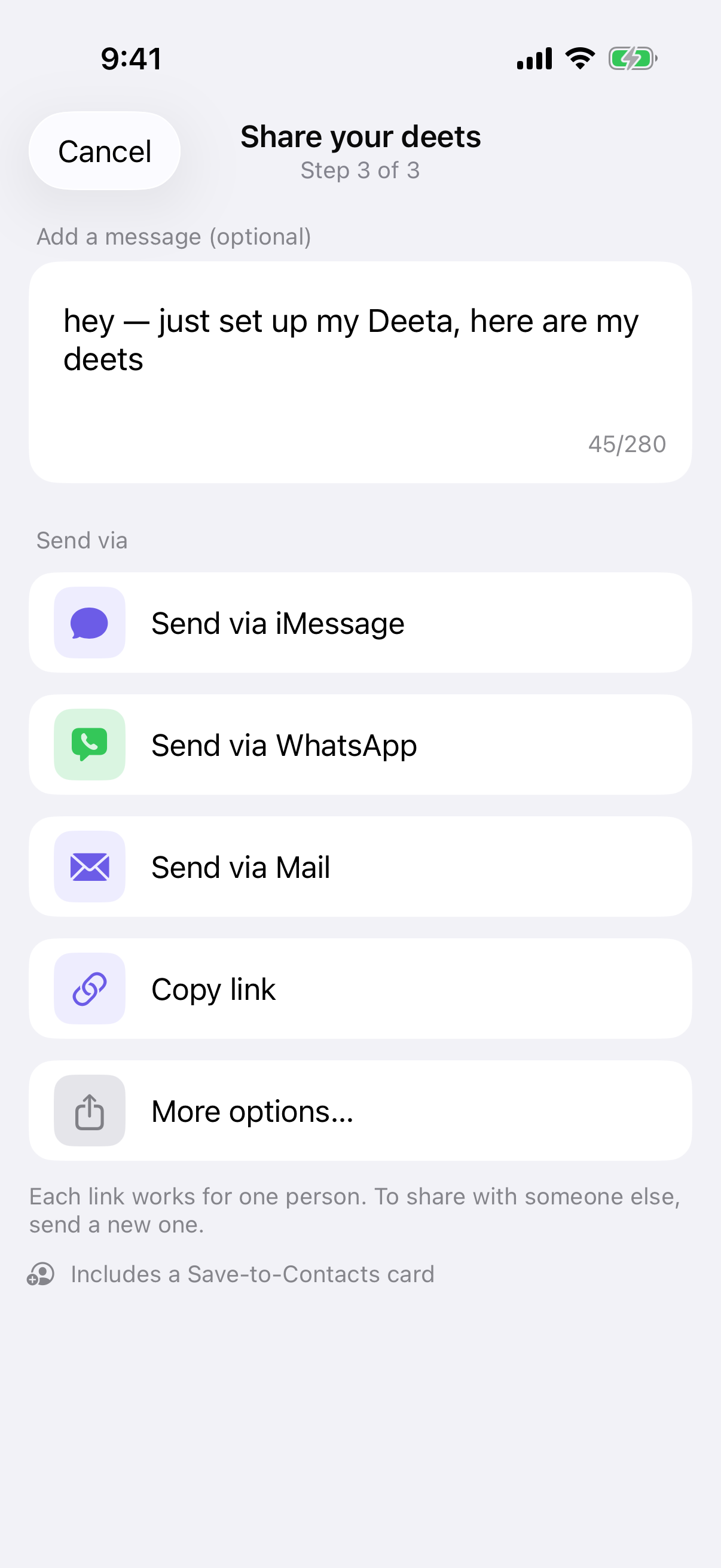
Choose how to send it. iMessage, WhatsApp, Mail, Copy link, or More options… for anything else on your phone — AirDrop, another messaging app, wherever you like.
If you pick iMessage, Deeta asks Who are you sending to? Search by name, tick one or more people, then tap Send to 1 person (or Send to 3 people). Each person gets their own message and their own link. If any details you picked are marked Ask, Deeta asks which to include before it sends.
-
Send. They get a link that shows your card — and they don't need Deeta to open it.
What a set actually contains
Worth knowing before you send anything.
A set includes everything filed underneath what you picked. Deets nest — you might have Trip to Japan with hotel, flight and restaurant details tucked under it. Put Trip to Japan in a set and all of those go too. You don't have to tick them one by one.
That also applies to things you add later. File another detail under Trip to Japan next week and it belongs to the set from that moment — and if you've sent that set as a live card, the people who have it get the new detail as well.
⚠️ The picker shows what you ticked, not what that adds up to. Open a set to edit it and you'll see the entries you chose; the number on the set counts everything included. If you're unsure what's in there, check the number rather than the ticks.
One link, one person
Every link can be claimed into Deeta by one person, once. The send screen says so:
Each link works for one person. To share with someone else, send a new one.
That stops a forwarded link adding you to a second person's Deeta. Until the link expires, though, anyone it reaches can still see your card — and if you sent your Contact Info set, save those details from the web page. So send each link only to the person you mean. To share with three people, send three links.
If you tap Copy link, the share screen stays open so that notice is still in front of you when you go to paste it. Tapping Copy link again re-copies the same link rather than creating a second one.
How many live cards you can have
Live cards work on every plan. Free lets you have 5 out at once and Plus 15. Pro and Power have no limit.
A live card counts from the moment you send it. It stops counting if the link expires before anyone claims it, if you revoke it, or — once someone has accepted it — when you stop updating them or take your details back in Who has your profile.
At the limit you can still share. The Ready to share step says This one goes as a snapshot, and See plans shows the options. Settings → Usage shows how many you're using, under Live shares.
What the recipient sees
Exactly what you chose to send. If they have Deeta, the link opens the app and they can save you in one tap. If they don't, it opens a web page showing your card and a way to get Deeta. If you sent your Contact Info set, the page also has a Save to contacts button, so they can add you without the app.
Staying in control
-
You can undo immediately. Right after sending, Deeta gives you a few seconds to take it back. See Undoing a share you just sent.
-
You can revoke later. See Revoking a share.
-
Links expire on their own, after 24 hours. See How long share links last.
-
Links nobody has claimed yet are listed in Settings → Shared links. Once someone accepts one, it leaves that list and they appear in Who has your profile.
-
You can stop one person at a time. In Who has your profile you can stop updating someone or take your details back, on every plan. See Who has your profile.
Troubleshooting
My card looks empty. Open My Deets and add your details. Your card starts with the name you gave during setup, and it only contains what you put in it.
I don't know which set to send. Any of them — you can always share again with a different set. If you're unsure, send the one with your name and the way you'd most like to be contacted.
The set has more in it than I ticked. That's the nesting — see above. Everything filed under an entry you picked is part of the set.
It says "This one goes as a snapshot". You're at your live-card limit. The share still goes, as a fixed copy. To free up a live card, stop updating someone in Who has your profile, or revoke a live link nobody has claimed yet. You can also tap See plans.
I picked iMessage and it's asking about my contacts. The iMessage step lists your contacts so you can search for the person. If it says contacts access is off, turn Contacts on for Deeta in your iPhone's Settings, or share with Copy link instead. People with no phone number or email aren't listed.
Deeta asked "Share sensitive details?" Something in the set is sensitive — health, for example. Don't include them sends your card without those details, as a snapshot.
I can't find a QR code. There isn't one. Deeta shares by link, and More options… hands that link to anything on your phone that can send it, including AirDrop.
I sent the wrong details. Revoke that share in Settings → Shared links and send a new one. If they've already accepted it, take your details back from Who has your profile instead.
I've sent a lot of shares and it's stopped letting me. There's a limit on how many you can send in a short period, to prevent abuse. Wait a few minutes and try again.
Questions
Do they need Deeta? No.
Can several people use the same link? Only one person can claim it into Deeta. Send each person their own.
Does it cost anything? No. Sharing your card is free on every plan, and so is sending it as a live card. Free and Plus can have a limited number of live cards out at once (5 and 15); past that, new shares go as snapshots. Pro and Power have no limit.
Will they see everything about me? Only what's in the set you chose — plus anything nested underneath it. Nothing outside that set is sent.
If I add a detail later, do they get it? Only if you sent a live card and the new detail sits inside the set you sent. A snapshot never changes after it leaves.