

The My Deets tab is you. It's what people receive when you share, so it's worth getting right.
It's also the only place your own details live — you won't find yourself in the Contacts list.
The first time you open My Deets, a short tip explains your card and sets. Tap ⓘ at the top right to see it again.
What's on it
-
Contact info — your name, photo, phone numbers, emails, addresses and birthday
-
Your deets — the same rich details as any contact, but about you
-
Your sets — bundles you can share as a unit, like Professional or Family
-
Share my deets — the button at the bottom that starts a share
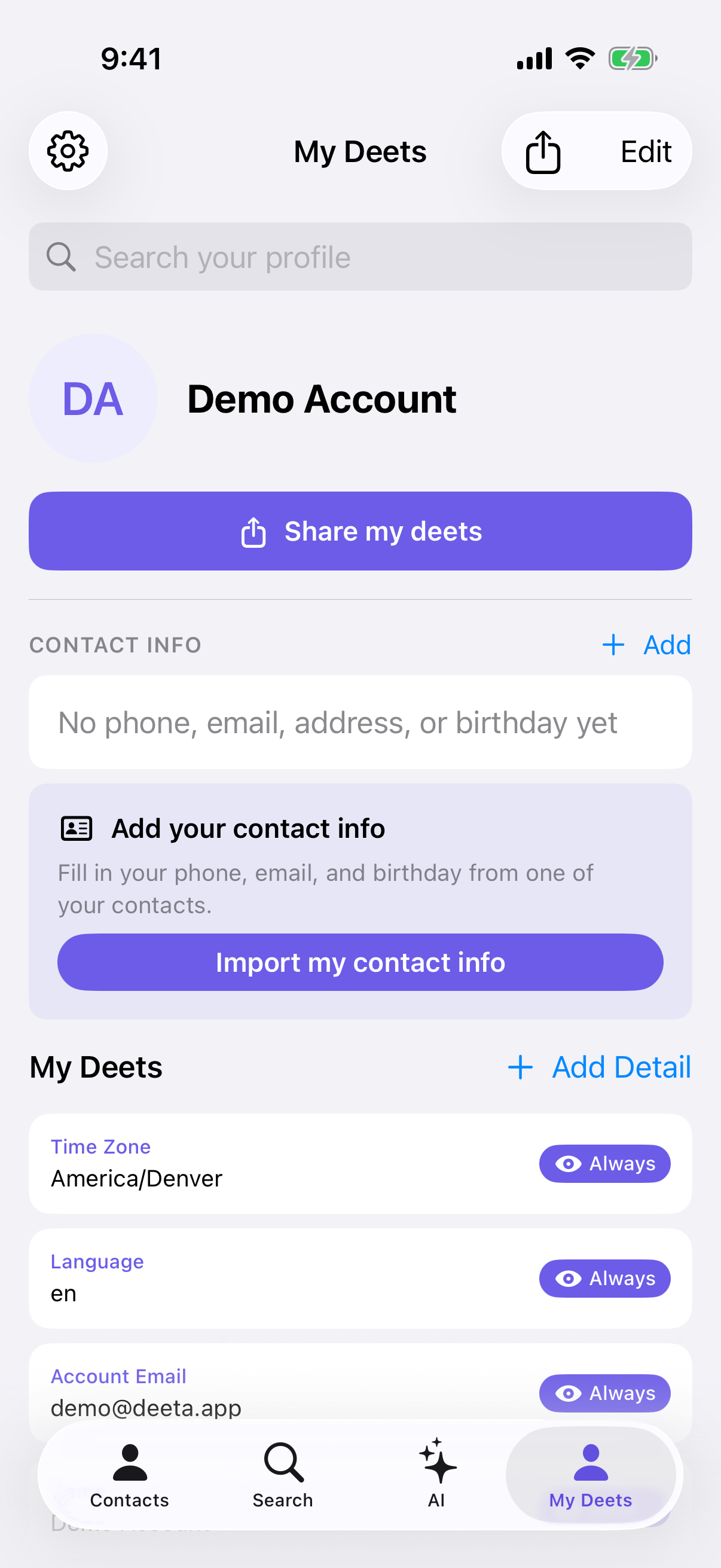
Contact info
The CONTACT INFO section holds the standard things — phone, email, address, birthday. These are real contact fields, not deets, which matters: when someone claims your card, your number lands in their phone as a phone number, so caller ID works and they can just tap to call.
Tap Add contact info to add one, or Edit to change what's there.
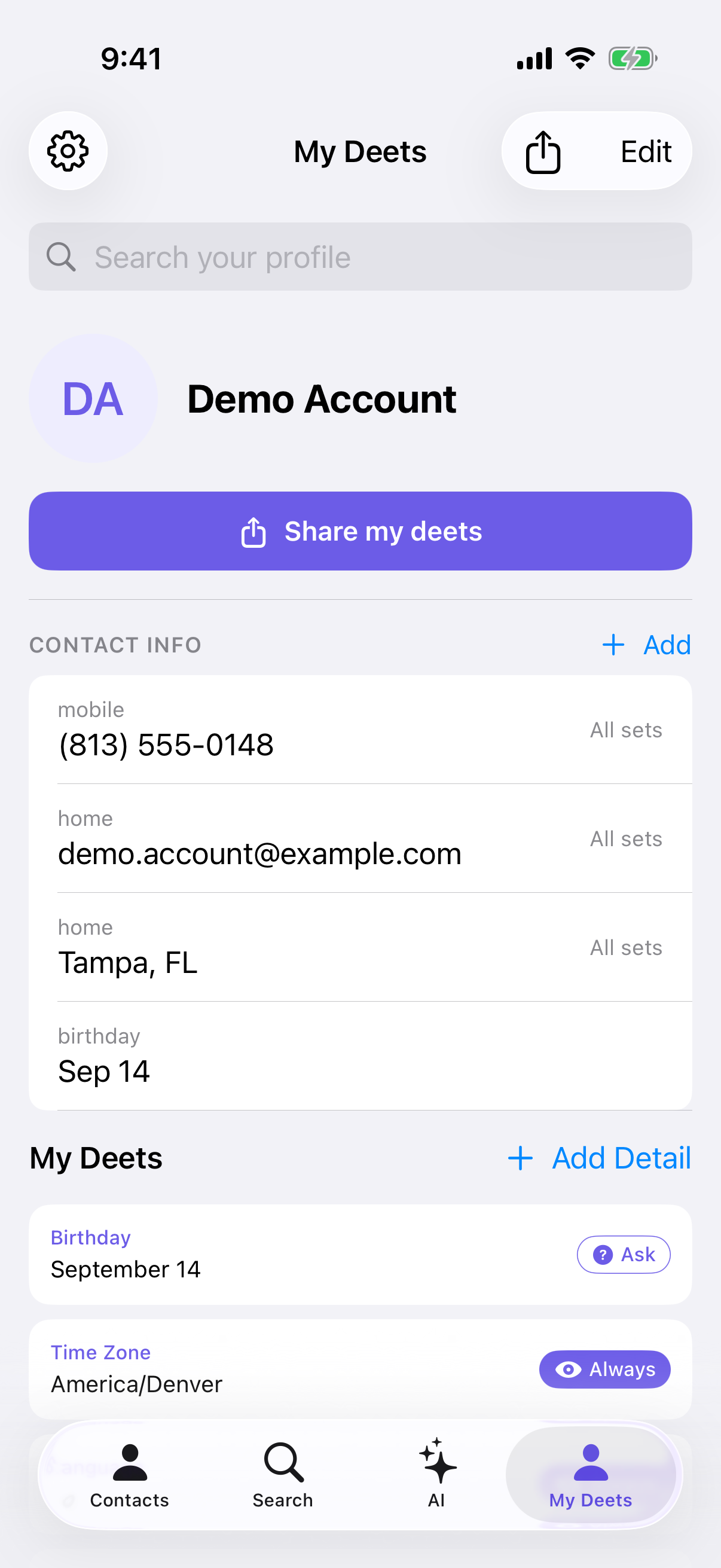
Choosing which sets each one goes in
Each entry carries its own set membership, shown under it: No sets, 1 set, or 3 sets.
New entries start in your Contact Info set, so the basics are there from the off. Every other set needs you to add the entry yourself. Tap the entry and choose Assign to Sets…, then tick the sets it belongs in — Shared only when one of the selected sets is shared.
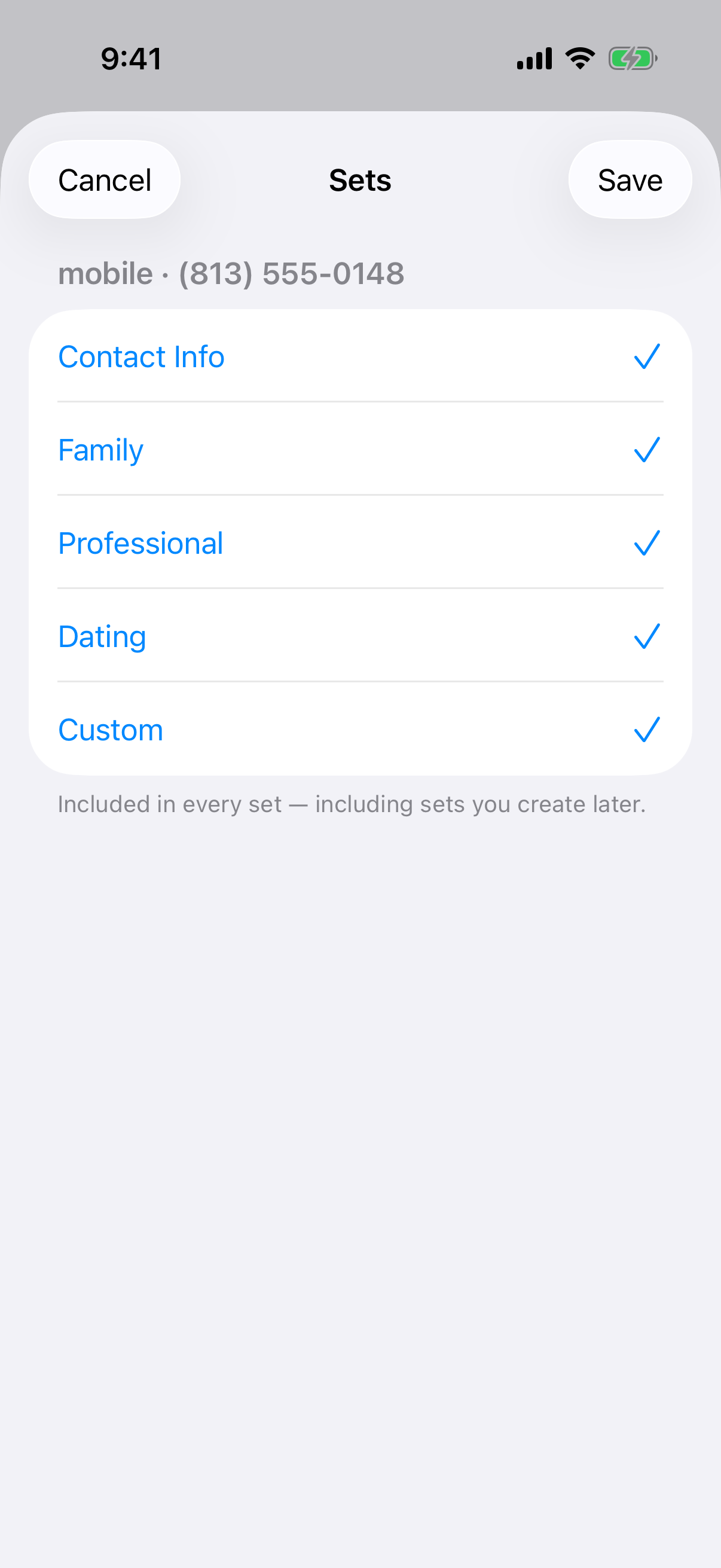
That's how you give a client your work number and a friend your mobile, from one card.
⚠️ An entry showing No sets isn't shared with anyone. If a number never seems to arrive, that's the first thing to check.
Each entry also carries the same Always / Ask / Never setting as any other detail, for the same reason — behind the scenes each one is a detail, which is what lets it travel and be taken back like the rest of your card.
Your photo and name
Tap Edit at the top to change them.
Your first name and photo appear on the preview page anyone with your share link can open — before they claim anything. Choose a photo you're happy to have seen that way.
Each set can also show its name, its field labels, or the values themselves on that preview. You choose this per set, in Settings → Deet Sets, under Share card visibility.
Adding your own deets
Tap + Add Detail and enter a label and a detail. Yours can be shared, so keep private observations on a contact rather than here.
Each deet has a sharing setting:
-
Always — included whenever you share
-
Ask — Deeta checks each time
-
Never — kept private, never shared
Under each deet you'll see how many people currently have it — "Shared · 3 people" — so you always know what's out there.
Sets
Sets decide what goes out together. You start with five: Contact Info, Family, Professional, Dating and Custom. Manage them from Settings → Deet Sets.
Adding a deet to a set doesn't copy it — one deet can be in several sets.
Anything filed underneath a deet comes with it. Put Trip to Japan in a set and the hotel, flight and restaurant details nested under it are in that set too, without ticking them separately. Add another detail under it next month and that's included from then on as well.
Deets marked Never aren't shared, even if a set includes them.
Nesting your own deets
Your card nests exactly like a contact's. When you add a detail, use the Nest under row in the add sheet to file it beneath an existing one — or leave it at the top level.
That's what makes Trip to Japan hold the hotel, the flight and the restaurant bookings, and what makes putting the parent in a set carry all of them. Seven levels deep, same as anywhere else. See Adding a deet.
Each set also carries a live updates default, which decides whether cards sent from it keep themselves current. See Sending a card that stays up to date.
Deleting a set
A set made for a trip or a project is often the only thing holding its details together, so deleting it offers two paths:
-
Delete set only — the set goes, every detail stays on your card
-
Delete set and its details… — the set goes and takes its details with it. Deeta tells you how many first: "Delete set and 12 details"
Only details that no other set holds are removed. Anything you'd also put in another set stays, and so does anything filed underneath it. Nothing is quietly swept up because it happened to sit nearby.
There's no undo on this, which is why the count is shown before you confirm.
If you've made edits you haven't saved, Deeta asks you to save them first — "Save your changes first to also delete the details in this set."
Filling it in from your phone
Deeta can fill your card from your own contact card on your iPhone — Settings → Import my contact info. It's a shortcut, not a decision: review what it added and change anything you'd rather not share.
Troubleshooting
My card looks empty when I share it. Check your details are actually in the set you're sending, and that they're not marked Never. For contact info, check the caption under each entry — No sets means it goes nowhere.
I shared a set and my phone number wasn't in it. Contact info entries only travel in the sets you've put them in. Tap the entry, choose Assign to Sets…, and tick that set.
I shared my work number and they got my mobile too. Both entries are in that set. Open the one you didn't mean to send and untick it in Assign to Sets….
"+ Add Detail" is greyed out. Either your deets couldn't load — retry first — or you've reached the maximum number of self-deets.
Something private ended up on my card. Open it and set it to Never, then revoke any share that included it. See Revoking a share.
A set contains more than I put in it. Details nested under an entry you added are part of the set. Open the entry to see what's underneath it.
I deleted a set and a detail I expected to go is still there. It's in another set as well, so it was kept. Remove it from that set too, or delete it from your card directly.
"Couldn't load your deets." Tap retry. Your details are on the device and aren't lost.
My photo won't upload. Very large images can fail. Try a smaller one.
I can't find myself in the Contacts tab. That's deliberate — your own card lives here, and only here.
Questions
Do I have to fill this in? Only if you want to share your details. Everything else in Deeta works regardless.
Why does my phone number say "No sets"? It isn't in any set yet, so it won't be shared. Tap it and use Assign to Sets…. New entries start in Contact Info, but any other set is yours to choose.
Is my card on Deeta's servers? Your details live on your iPhone. When you share, an encrypted copy of what you chose to send is held on Deeta's servers so the person can collect it — Deeta has no key to read it. The preview card is different: it shows your first name, your photo, the set's name (you can turn that off) and, only if you choose, a few details, and anyone holding the link can open it until the share expires or you revoke it.
Can I have more than one card? One card, several sets — which is the same idea with less to manage.
Who can see it? Only people you send a link to — and anyone they pass the link on to, until it expires. There's no directory and no search.
Can I change my details after sharing? Yes. Whether that reaches people who already have your card depends on whether you sent a live card — see Live Updates.