

After you've created your account, Deeta takes you through a few short screens: your contacts, a summary of what came across, and which contact is you. Then you're in.
Anything you skip can be done later.
What happens, in order
1. Your contacts
The first screen welcomes you and explains what Deeta does with your contacts: it starts with the people already in your phone, so sharing all of them is the recommended setup.
Tap Continue and your iPhone asks for permission. Or tap Skip to carry on without them.
On iOS 18 and later the screen also explains the other choice your iPhone offers — sharing only some of your contacts — and what that costs. See Importing your contacts.
2. What came across
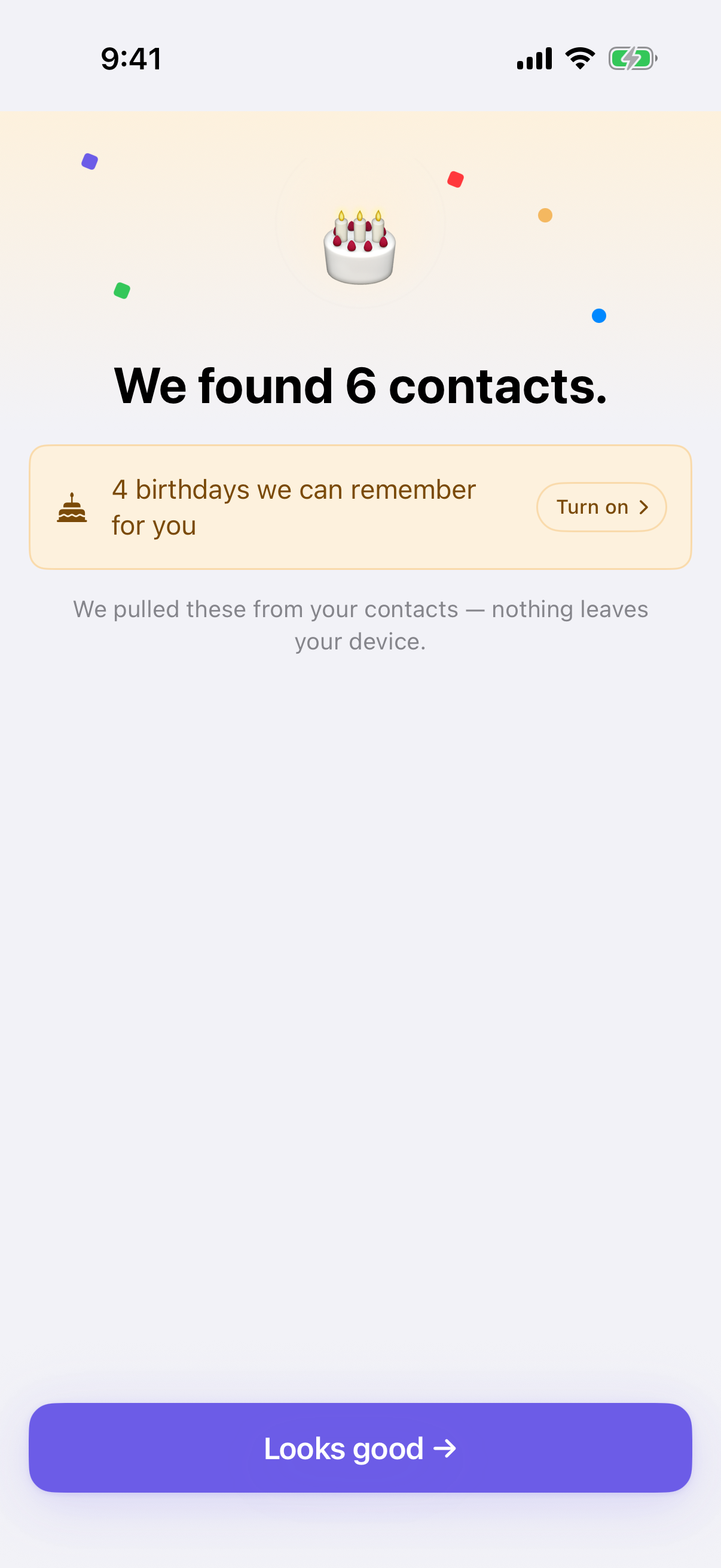
Deeta imports your contacts, showing its progress as it goes, then tells you what it found — "We found 412 contacts."
Depending on your address book, the summary can also show:
-
Birthdays. How many it found. Deeta offers birthday reminders later — the first time you open a contact who has a birthday — or you can turn them on any time in Settings → Alerts.
-
Possible duplicates. Tap Review to look through them and merge any that are the same person. You come back to the summary when you're done.
If you shared only some of your contacts, a note says so, with a shortcut to grant full access.
Tap Looks good → to move on.
3. Which one is you?
Which contact record is you?
If one of your contacts has the email address you signed up with, Deeta shows it first and asks Is this you? — tap Yes, this is me. Otherwise, pick yourself from the list; there's a search field at the top.
Picking your own record fills in your name, so you don't retype it.
Not in your contacts? Choose None of these is me. You'll enter your details on the next screen, and Deeta creates a contact card for you — in Deeta, and in your iPhone's Contacts app.
4. Your name
A short form with your name, organisation and a short bio. Check your name and tap Save.
Deeta then sets up your starting deet sets — bundles of your own details you share as a unit — and you're done.
5. Done
Deeta opens on the Contacts tab.
Explanations as you go
Setup doesn't try to explain everything up front. Instead, the first time you open each part of Deeta — your contacts, a contact's page, Ask AI, search, My Deets, Settings, sharing, voice capture, groups and tags, and updates people send you — a short sheet explains it. Tap Got it to carry on.
Five of them — Contacts, a contact's page, Ask AI, My Deets and Save to Deeta — have a small ⓘ so you can read the explanation again.
To see them all again: Settings → Show tips again. Each screen explains itself once more the next time you open it.
If your account already has data
Signing in on a new iPhone, or after reinstalling? Deeta sees the account already has data and asks how to bring it over:
Bring your data to this iPhone.
-
Use a backup file you exported — the recommended route, if you have one.
-
Rebuild from your address book — starts fresh from your iPhone's contacts. Deeta warns you first: the rebuilt records won't match up automatically with your old data if it comes back later.
If you restore from a backup, Deeta then asks for access to your contacts so it can reconnect the people you restored to the ones on this phone.
Troubleshooting
The summary is showing very little. It's built from your imported contacts. With a small address book — or none — there's less to show. Normal, and nothing is wrong.
I skipped my contacts and want them now. Open the Contacts tab and tap Allow Access. If you told your iPhone no earlier, that screen offers Open Settings instead — turn Contacts on for Deeta there. A banner at the top of Deeta's Settings takes you to the same place.
I picked the wrong person as "me". Go to Settings → Import my contact info and pick the right contact. You can also edit your own card directly in My Deets.
I finished setup and my account is empty. Deeta offers to help the next time you open it, with options to add your contacts or import a backup. You can skip that and do it later.
Can I go through setup again? No — it only runs once. Everything it sets up is reachable afterwards: your card in My Deets, your contacts from the Contacts tab, reminders from a contact's page or Settings → Alerts. And Settings → Show tips again brings back the explanations.
Questions
Do I have to complete it? No. You can skip your contacts, and everything else can be changed later.
Why does Deeta ask which contact is me? So your own card starts from details you've already got, instead of making you retype them. It's also the card you share with people — see Your own card — My Deets.
What's a deet set? A bundle of your own details you share together. Deeta starts you with a few — Professional might be your job title and work email, Family your home address — and you choose which sets go to each person.
Where did the other setup steps go? Earlier versions of Deeta had a longer setup. Those explanations now appear the first time you reach each part of the app, where they make more sense.