

Deeta works best with your existing contacts in it. Importing brings them all across in one go, and keeps them in step with your iPhone's Contacts app from then on.
Import during setup
-
Deeta shows a short screen explaining what it needs your contacts for, and why sharing all of them is the recommended setup. Tap Continue.
-
Your iPhone asks for permission. Choose to give Deeta access to all of your contacts.
-
Deeta imports them and shows you what it found — how many came across, how many birthdays, and any possible duplicates you might want to review.
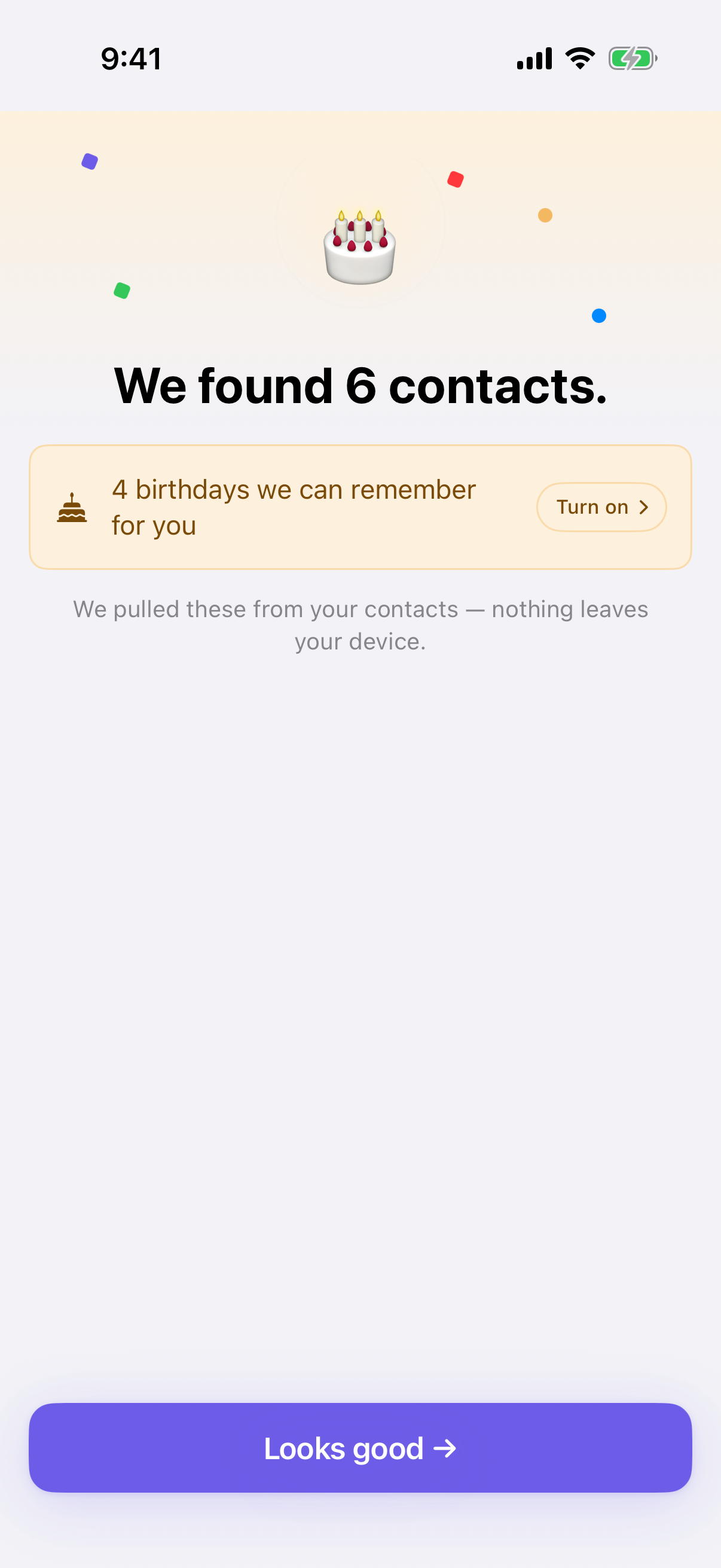
-
That's it. Once setup finishes, your contacts are in the Contacts tab, sorted alphabetically.
We can't tell you exactly which button to tap. That permission screen belongs to your iPhone, not to Deeta — Apple changes its wording and layout between iOS versions and translates it into every language. Look for the option that gives Deeta all of your contacts.
Import later
Skipped it? Nothing is lost — you can do this weeks later.
-
Open the Contacts tab and tap Allow Access on the empty screen. Your iPhone asks for permission, and your contacts come in.
-
If you'd already told your iPhone no, that screen offers Open Settings instead. Turn Contacts on for Deeta there and come back. The banner at the top of Deeta's Settings takes you to the same place.
-
If your account is still empty the next time you open Deeta, it offers to add your contacts then, too.
If you only gave access to some contacts
On iOS 18 and later, your iPhone lets you pick specific contacts rather than sharing all of them. Deeta works, but with less to work with — search, birthday reminders and your own card are all built from what it can see.
Two ways to change that:
-
Add more people: in Deeta, Settings → Import from Contacts. This row only appears while Deeta has access to a selection.
-
Switch to everyone: your iPhone's Settings → Deeta → Contacts, and switch to full access.
On iOS 17 and earlier there's no partial option — the prompt is simply allow or don't.
What gets imported
Names, phone numbers, email addresses, addresses, websites, birthdays, photos and company names — the standard fields. Notes don't come across yet (see Troubleshooting).
What stays in Deeta only: the deets you add, plus your tags and groups. These are never written into your iPhone's contacts. See Permissions Deeta asks for.
Keeping in sync
After the first import, Deeta and your iPhone's Contacts app stay in step both ways:
-
Edit a phone number in Deeta → it updates in Contacts.
-
Change something in Contacts → it updates in Deeta.
-
Delete someone in Contacts → Deeta asks you what to do rather than deleting them. See Deleting a contact.
To pick up changes straight away rather than waiting, use Settings → Sync Now.
Troubleshooting
The import seems stuck. Large address books take longer than you'd expect. Leave Deeta open and on screen. If it hasn't moved after a few minutes, close Deeta fully and reopen it — the import picks up where it left off.
Only some of my contacts came across. You most likely gave Deeta access to a selection rather than all of them. Open your iPhone's Settings → Deeta → Contacts and switch to full access, then reopen Deeta.
I skipped the import and can't find my way back. Open the Contacts tab and tap Allow Access — or Open Settings, if you told your iPhone no.
I see duplicates. If you've imported before or restored from a backup, some contacts can appear twice. The setup summary offers to Review them; afterwards, go to Settings → Organisation → Find Duplicates — Deeta lists likely matches and lets you merge them.
Some contacts look like they lost information. Check the contact in your iPhone's Contacts app. If the detail is there but not in Deeta, tap Settings → Sync Now.
Notes from my contacts didn't come across. Not yet — that one field needs a permission from Apple that's still pending. Everything else imports normally.
Questions
Does importing change my iPhone's contacts? No. Importing only reads them.
Can I import from Google or Outlook? Not directly. Add the account to your iPhone (Settings → Apps → Contacts → Accounts) so those contacts appear in the Contacts app, and Deeta will pick them up.
What if I don't want to import at all? That's fine. Add people by hand, or receive cards others share with you.
Will my contacts be uploaded anywhere? No. Deeta doesn't upload them — they stay on your iPhone.